How to use this guide. New to the roster? Read pages 3 to 9 in order, with the roster open beside you. Already know it? Use the contents to jump to what you need. On a screen, tap a line above to go straight there.
Look for these boxes
Tip a shortcut or good habit.
Good to know something that helps you understand.
Careful something that is easy to get wrong.
Red numbers
The red numbered circles on screenshots match the numbered list beside or under them.
Buttons in this guide look like this: Tools
Before you start
This guide shows you, step by step, how to set up and run the daily floor roster. No computer skills needed: if you can use a phone, you can do this.
What the roster does
The roster is a web page that shows who is working, when, and in which zone of the store. It replaces the paper roster. Everyone in the store sees the same live roster. Supervisors can change it; everyone else can only look.
Supervisors can
Add people and set their shifts
Put people into zones (Women, Men, POS and so on)
Plan and track lunches and breaks
Check that every zone is covered
Print a backup copy
Everyone else can
Open the roster on any phone, tablet or computer
See who is in which zone right now
See their own shift and breaks
Not change anything (it is locked)
Words used in this guide
Roster
One day's plan. Each day has its own roster.
Shift
The hours someone works, for example 9:00 - 5:00.
Zone
A part of the store with a job, such as Women, Men, POS or BOH. Each zone has its own colour.
Grey block / SHIFT
A shift that has no zone yet. It appears grey and the person is marked "Unassigned".
Usual zone
A zone you save for someone who always works the same place, such as a Lead.
Coverage
How many people are in a zone. Some zones must always have at least one person.
Lock / Unlock
Locked = view only. Unlocked = a signed-in supervisor can edit.
1. Opening the roster and signing in
Open the roster
Open the roster web page in Safari (iPad or iPhone) or any browser on a computer. Ask your manager for the address and write it here:
Put it on the iPad or iPhone Home Screen (once)
Open the roster page in Safari.
Tap the Share button (a square with an arrow pointing up).
Scroll down and tap Add to Home Screen, then tap Add.
From now on, tap the new Roster icon, like any other app.
Sign in (Unlock)
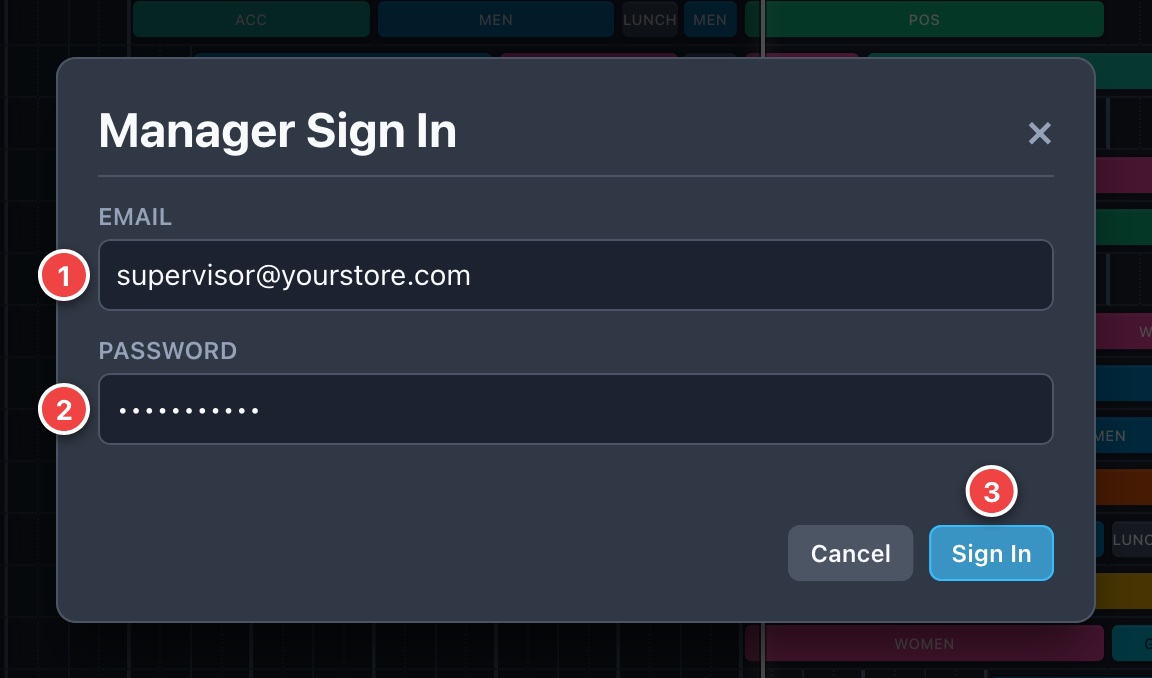
Tap 🔒 Unlock at the top right.
Type your own email and password.
Tap Sign In.
The button now says 🔓 Lock and the editing buttons appear.
Careful Use your own sign-in. Never share a password. If you forget it, ask your manager to reset it.
The sign-in box. 1 Email. 2 Password. 3 Sign In.
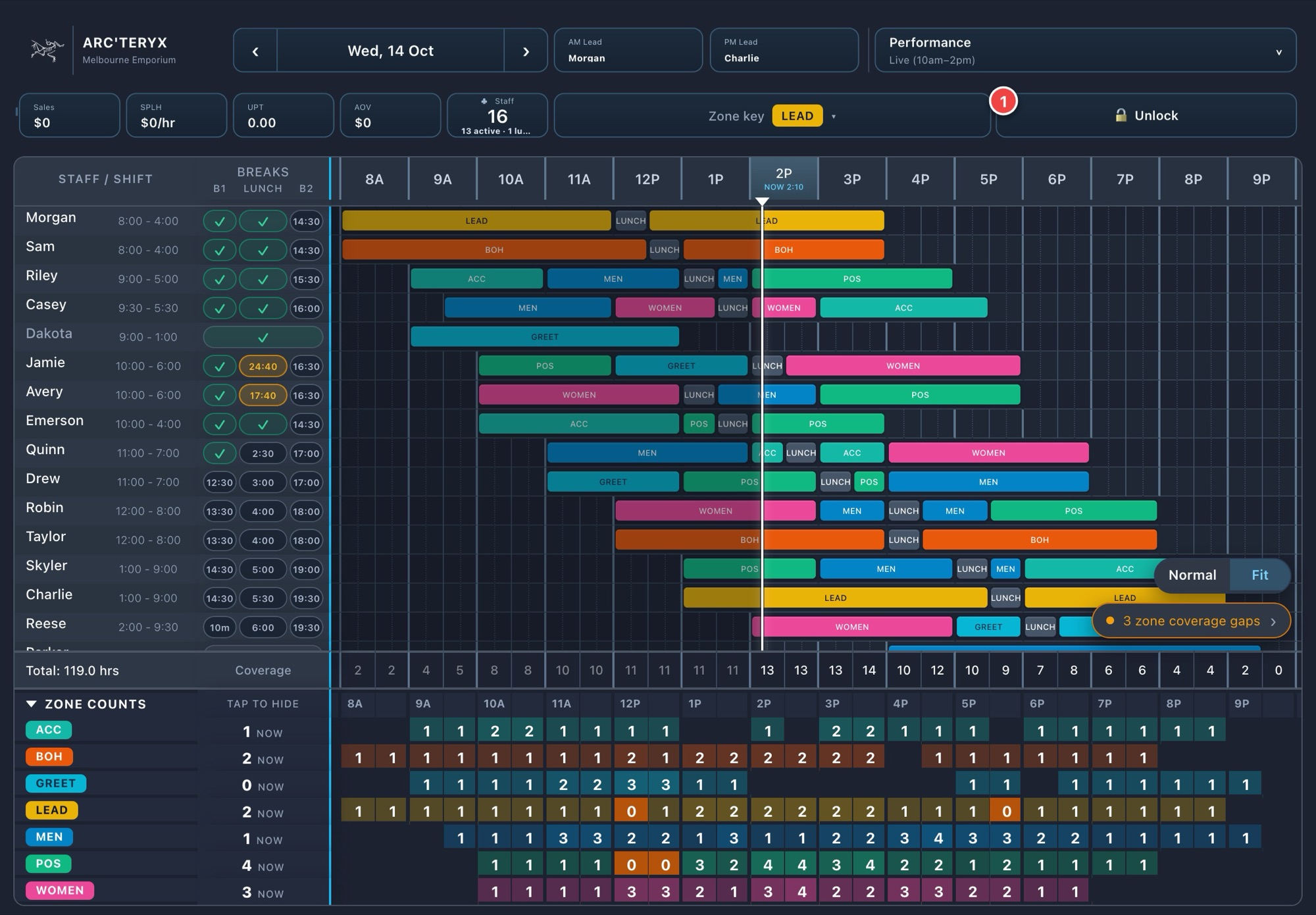
What staff see when it is locked
The locked (view only) roster. The only button is Unlock. Nobody can change anything.
Tip When you finish, tap 🔓 Lock. Everyone can still see the roster, but nothing can be changed by accident.
2. A tour of the screen
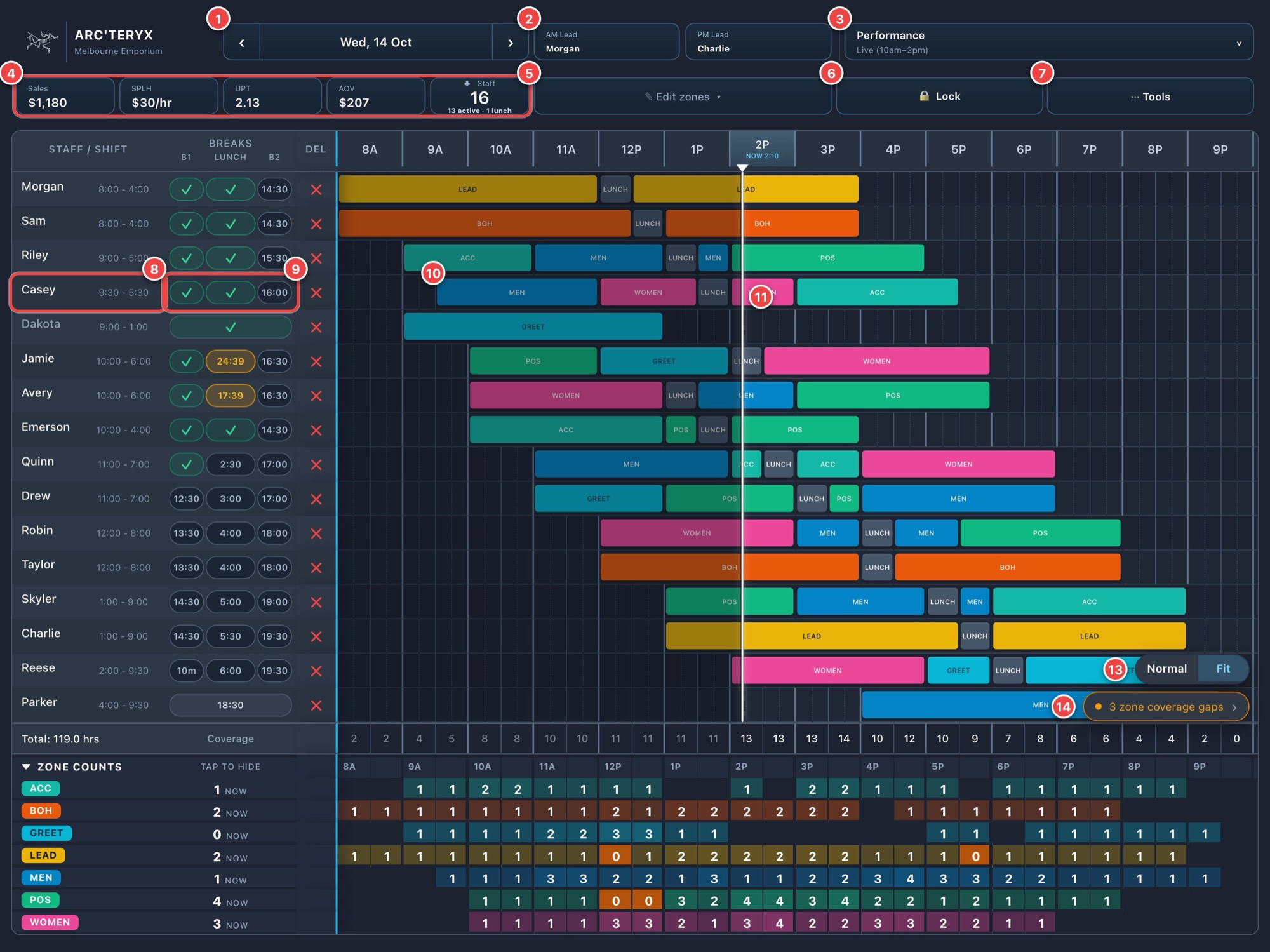
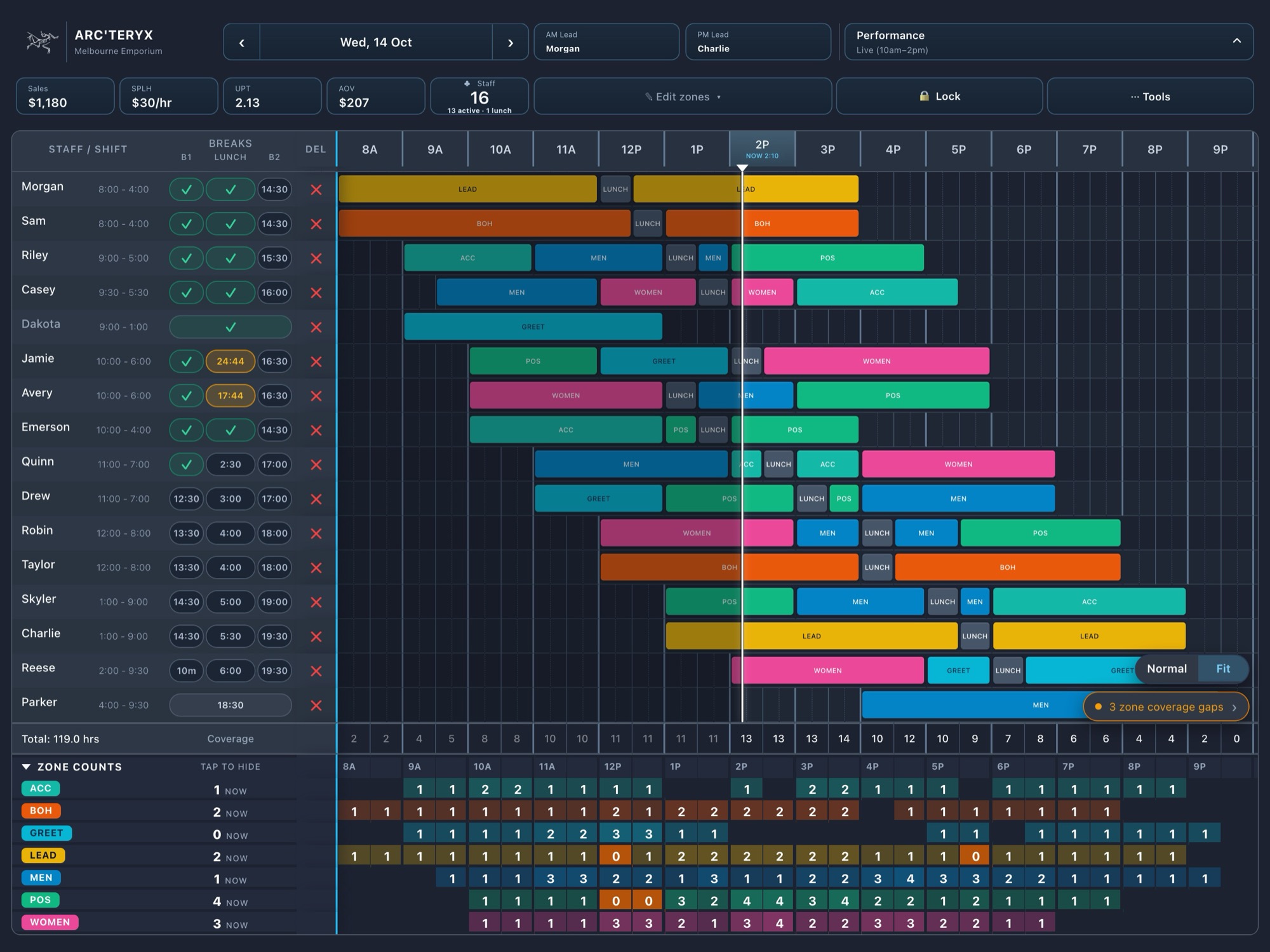
This is the roster with a supervisor signed in. Every part is numbered below.
The roster screen. The numbers match the list underneath.
1 Date. Tap ‹ or › for the previous or next day. Tap the date to pick any day.
2 AM Lead and PM Lead for the day.
3 Performance: sales for the day, hour by hour.
4 The day’s figures: sales, sales per labour hour, units per transaction, average order, and staff on the floor.
5 Edit zones: the button that unlocks zone painting (see page 8).
6 Lock or Unlock.
7 Tools: every other action (see next page).
8 A person: name, their zone right now, and shift time.
9 Their breaks: B1, Lunch and B2.
10 Their day as coloured blocks. One block is one zone.
11 The white line is the time right now.
12 Zone counts: people per zone for every half hour.
13 Normal or Fit view (see page 15).
14 Coverage warning: zones that are short.
3. The Tools menu
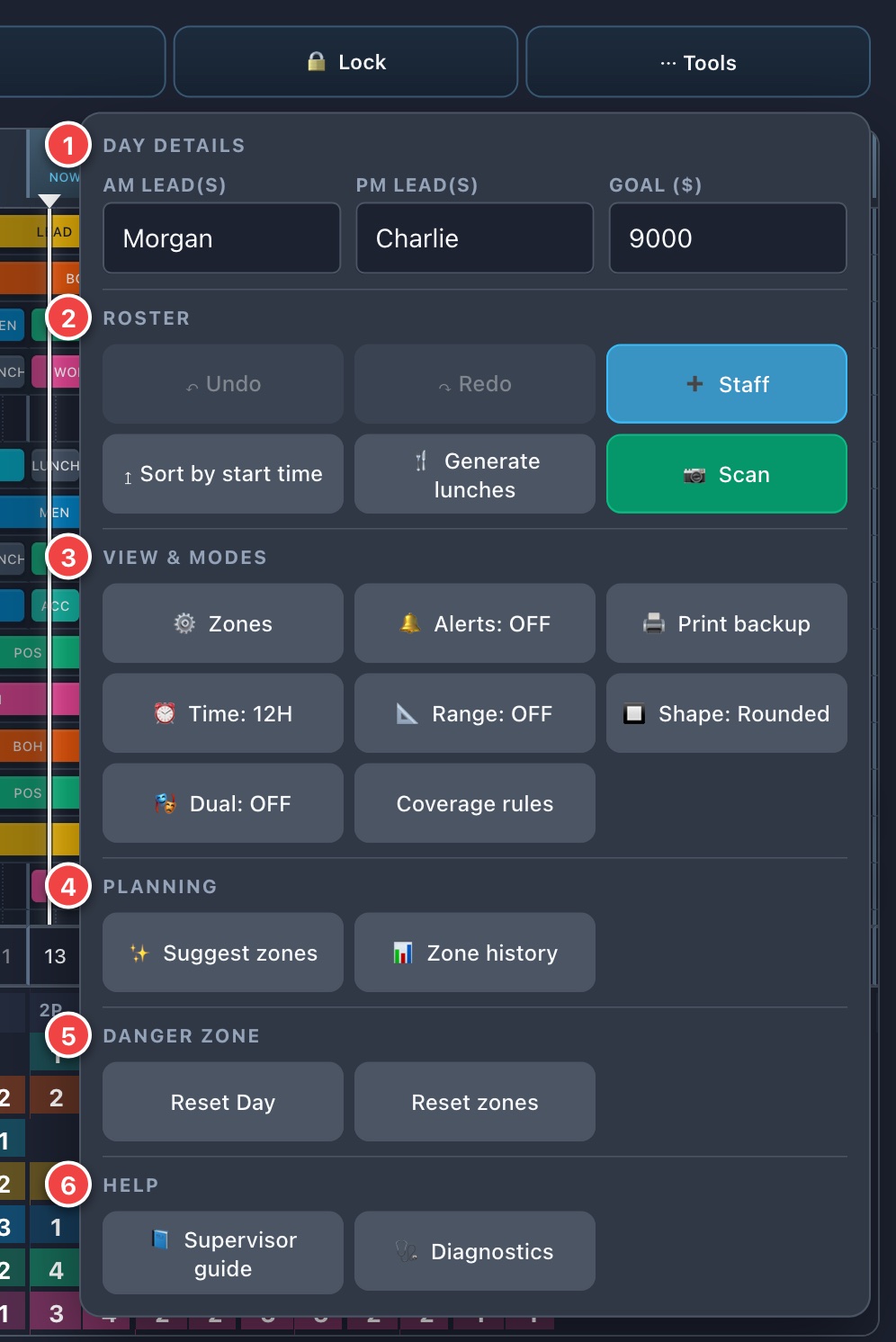
Tap ··· Tools at the top right. Everything you do not do every minute lives here.
The Tools menu, in six sections.
1Day details: AM Lead, PM Lead and the sales goal for the day.
2Roster: Undo, Redo, add staff, sort by start time, generate lunches, scan a paper roster.
3View & modes: zone colours, break alerts, print backup, 12 or 24 hour time, and the extra painting modes (Range, Shape, Dual). Coverage rules sets how many people each zone needs.
4Planning: Suggest zones and Zone history (pages 10 and 11).
5Danger zone: Reset zones turns every zone back to grey (Undo brings them back). Reset Day clears the whole day: avoid it.
6Help: this guide, and Diagnostics for when something looks wrong.
Good to know Undo and Redo step back and forward through your changes. If you make a mistake, tap Undo first.
4. Adding your team and their shifts
Add a person
Tap ··· Tools then + Staff. A new row appears at the bottom.
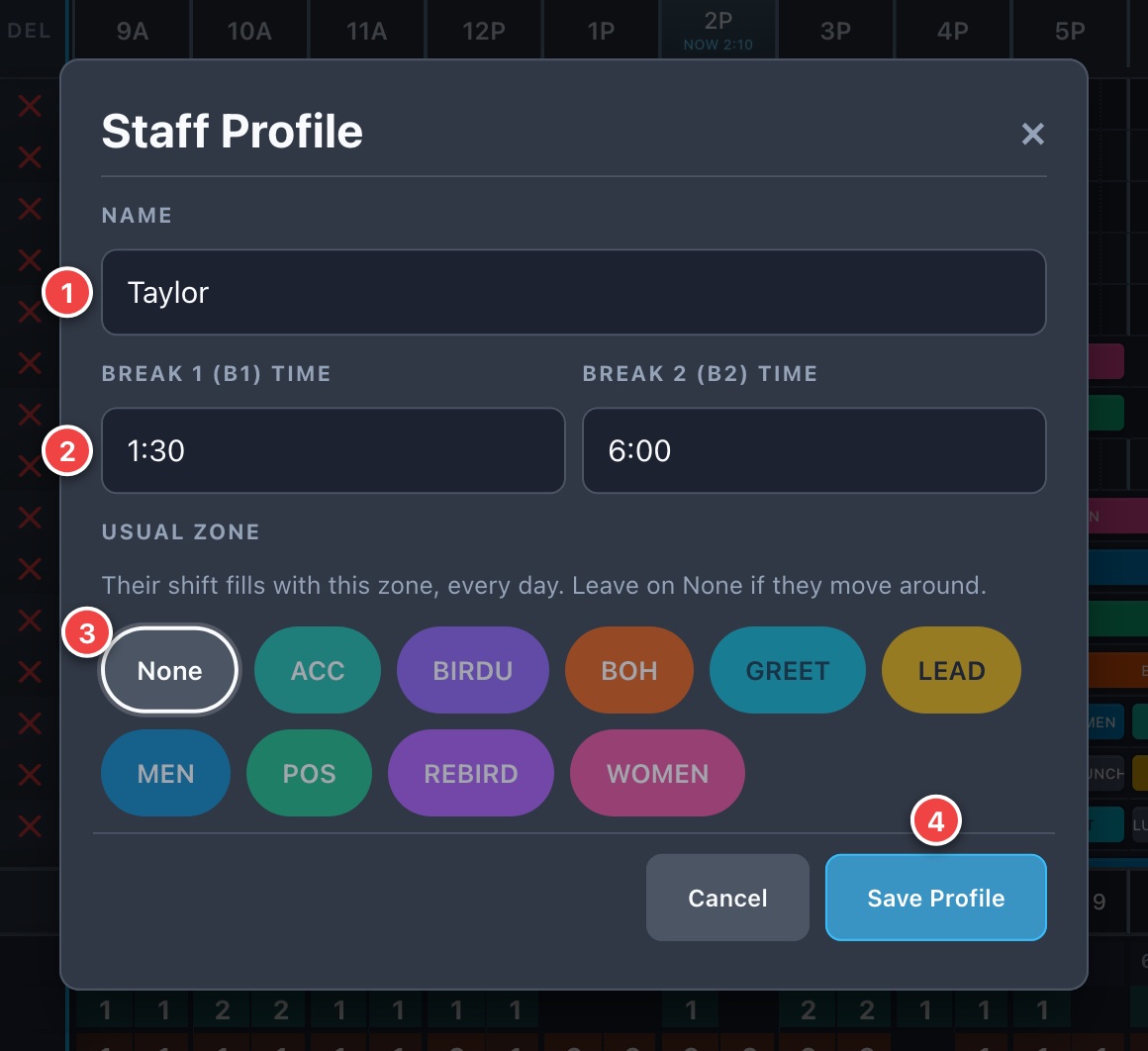
Tap the name in that row. The Staff Profile opens.
Type their name. Tap Save Profile.
The Staff Profile. 1 Name. 2 Break times (optional). 3 Usual zone. 4 Save Profile.
Break times and Usual zone
Break times (B1 and B2) are optional. Type a time such as 10:30 if you want it shown on the roster.
Usual zone is for people who always work the same place, like a Lead or Back of House. Pick their zone and their shift fills with that colour every day. Leave it on None for people who move around.
Good to know You can also remove someone with the red ✕ at the end of their row. Undo brings them back.
Set their shift time
Tap the shift time beside the name (it is a box).
Type it like 9:00 - 5:00 and press Return.
A grey block appears for the hours. Under the name it says Unassigned: the person has no zone yet.
1 Name. 2 Shift time (tap and type). 3 The grey block your shift creates.
Tip Got a paper roster? Tools → 📷 Scan reads a photo of it. Check the names and times it found, then confirm.
5. Putting people into zones
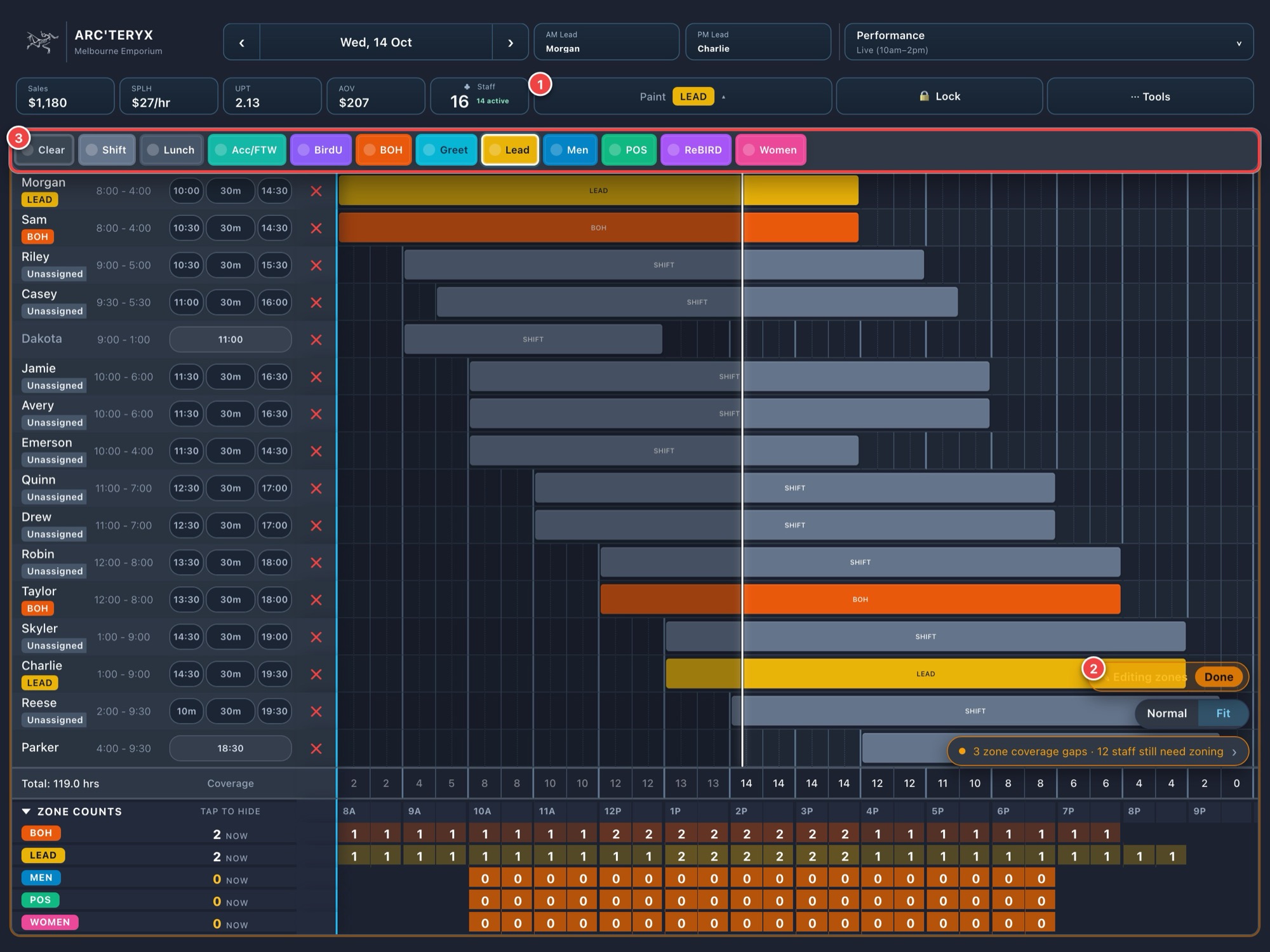
Zones are locked so a stray touch cannot change them. You unlock them on purpose, change what you need, then lock them again.
Step 1. Turn on Edit zones
Tap ✎ Edit zones at the top. The coloured Paint bar opens and a small orange Editing zones · Done label appears.
Make your changes (below).
Tap Done on the orange label when finished. It also locks itself after 3 minutes of nothing happening.
Careful If you tap the roster while zones are locked, the roster asks "Change zones?". Tap Edit zones if you meant to.
1 Edit zones. 2 The orange Editing zones label with Done. 3 The Paint bar.
5. Putting people into zones (continued)
Step 2. Choose the zone
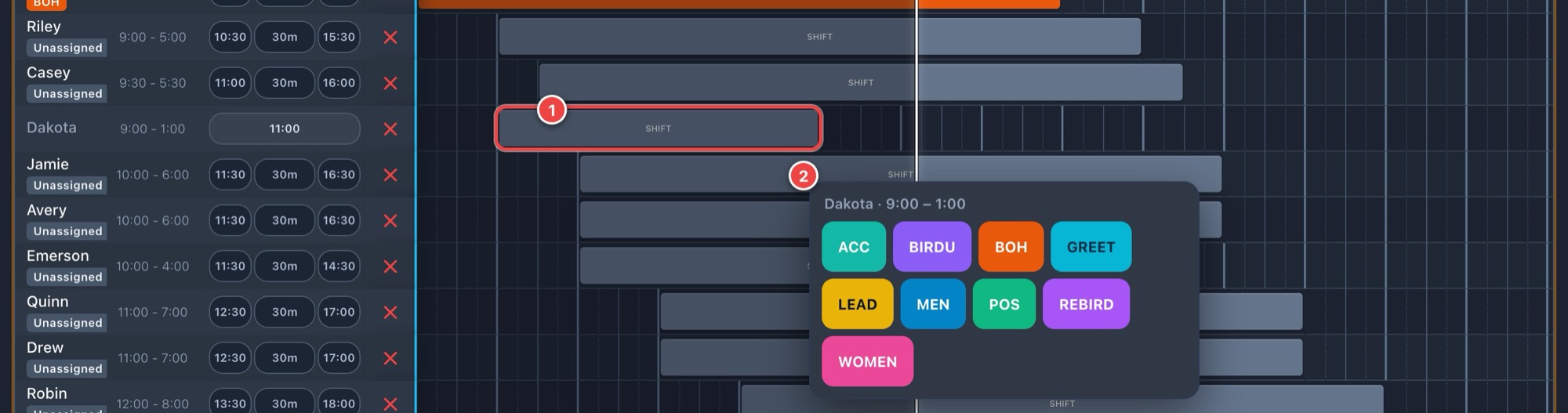
A. Tap the grey block (easiest)
Tap a grey block.
A box lists the zones. Tap one.
The whole grey block becomes that zone.
B. Drag a zone onto the block
In the Paint bar, press and hold a zone, then drag it onto a grey block. Let go to drop it.
C. Paint small pieces
Tap a zone in the Paint bar to select it, then tap cells on the roster. Each tap paints 15 minutes. Use Clear to rub out.
1 The grey block you tapped. 2 The zone choices.
Extra modes (optional)
Range
Tools → Range: OFF switches it on. Tap the first and last cell and everything between is painted.
Dual
Lets one 15-minute cell hold two zones (each counts as half a person). Useful for covering two places at once.
Shape / Time
Shape changes how blocks look. Time switches between 12 and 24 hour clocks.
Tip Made a mistake? Tap Tools → ↶ Undo. You can undo several steps.
6. Suggest zones (save time)
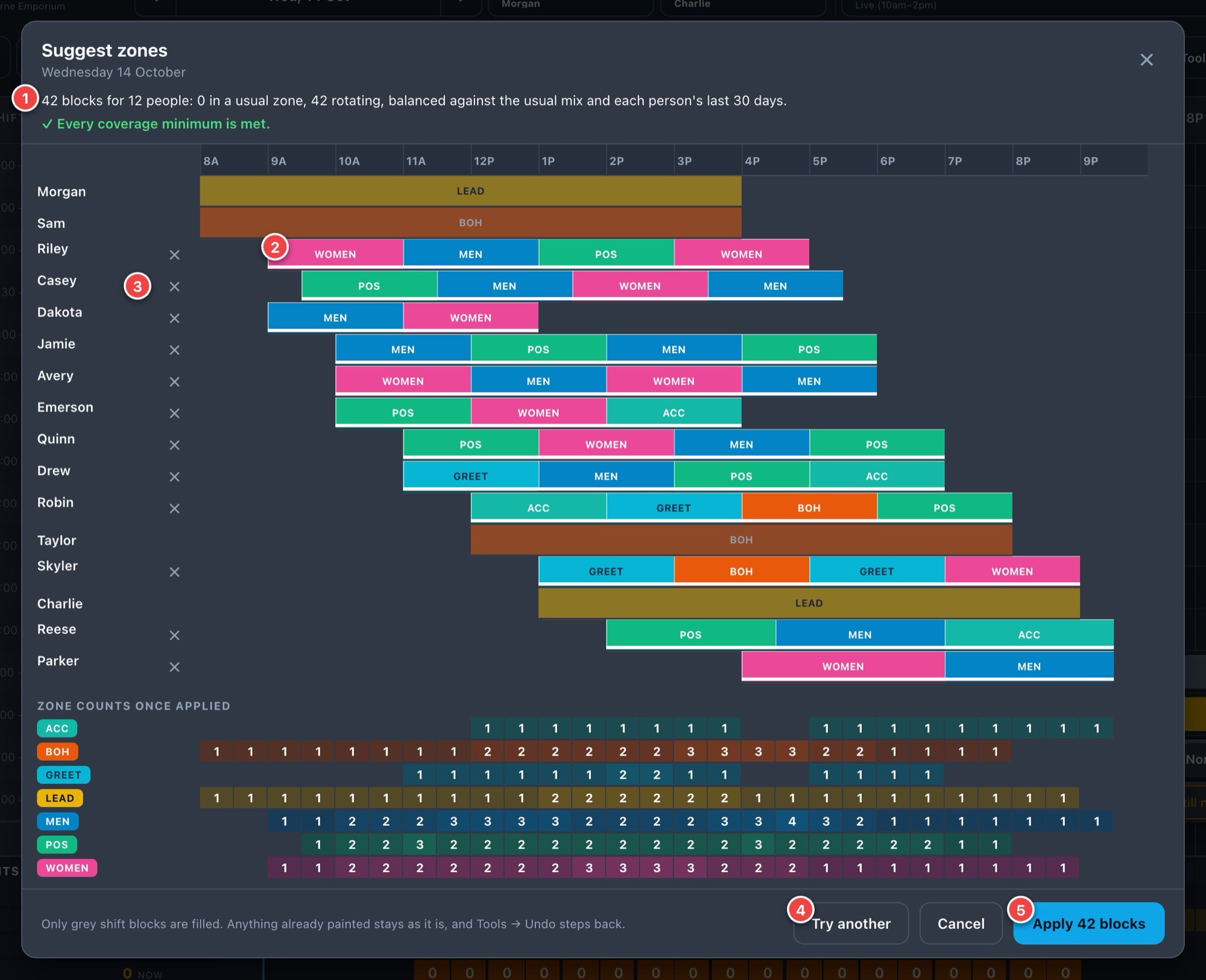
Instead of choosing every zone yourself, the roster can draft the whole day for you. It looks at the last 30 days. Nothing changes until you tap Apply.
Type everyone’s shift times so the grey blocks are there.
Tap Tools → ✨ Suggest zones.
Read the draft (below). Tap Try another for a different version.
Tap Apply to put it on the roster.
The draft. 1 Summary. 2 One suggested block. 3 ✕ leaves that person alone. 4 Try another. 5 Apply.
How it decides
People with a Usual zone (or who nearly always work one zone) keep it.
Required zones come first. A zone that needs someone gets someone.
Fair rotation. Others get the zones they have done least in the last 30 days, in blocks of about two to three hours.
Before 10:00 everyone who is not on Lead goes to BOH, and POS never has more than 2 people at once.
Longest block: Men and Women 4 hours, ACC 3 hours, Greet and POS 2 hours.
Men and Women get the most cover: they never have fewer people than ACC, POS or Greet.
BOH, Lead, BOH Runner and POS Runner are never handed out: only people who are set up for them (a Usual zone) get them.
It only gives people zones they have worked recently. A ! on a block means the person is new, so check it.
Anything you already painted is left alone. The table at the bottom shows the zone counts once applied.
Good to know The roster needs at least 3 days of past zones to make suggestions. Use ✕ beside a name to leave someone out, then Apply. Undo reverses the whole thing.
7. Zone history
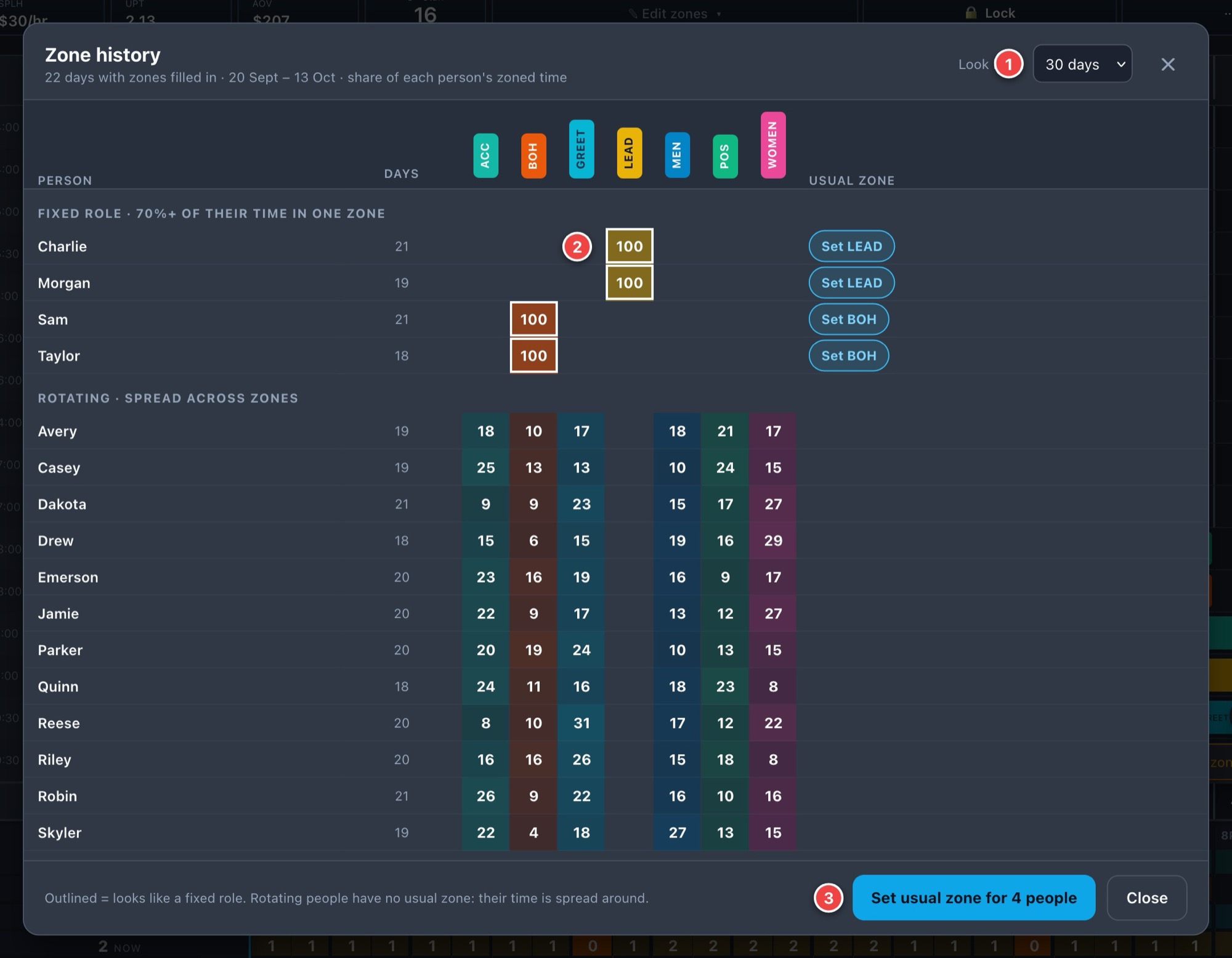
See who works which zone, as a percentage of their time over the last 14, 30 or 60 days. Open it from Tools → 📊 Zone history.
1 How far back to look. 2 Outlined = someone who nearly always works one zone. 3 Set Usual zones for everyone in one tap.
How to read it
Fixed role (top group): 70% or more of their time in one zone, over at least 3 shifts. These are your Leads and Back of House people.
Rotating (second group): their time is spread around, so they have no usual zone.
The Usual zone column shows each person's saved zone. Set LEAD saves it for one person. The blue button at the bottom saves it for everyone who has none, after you confirm.
Tip Setting a Usual zone also turns that person’s grey blocks on the current day into that zone.
8. Lunches
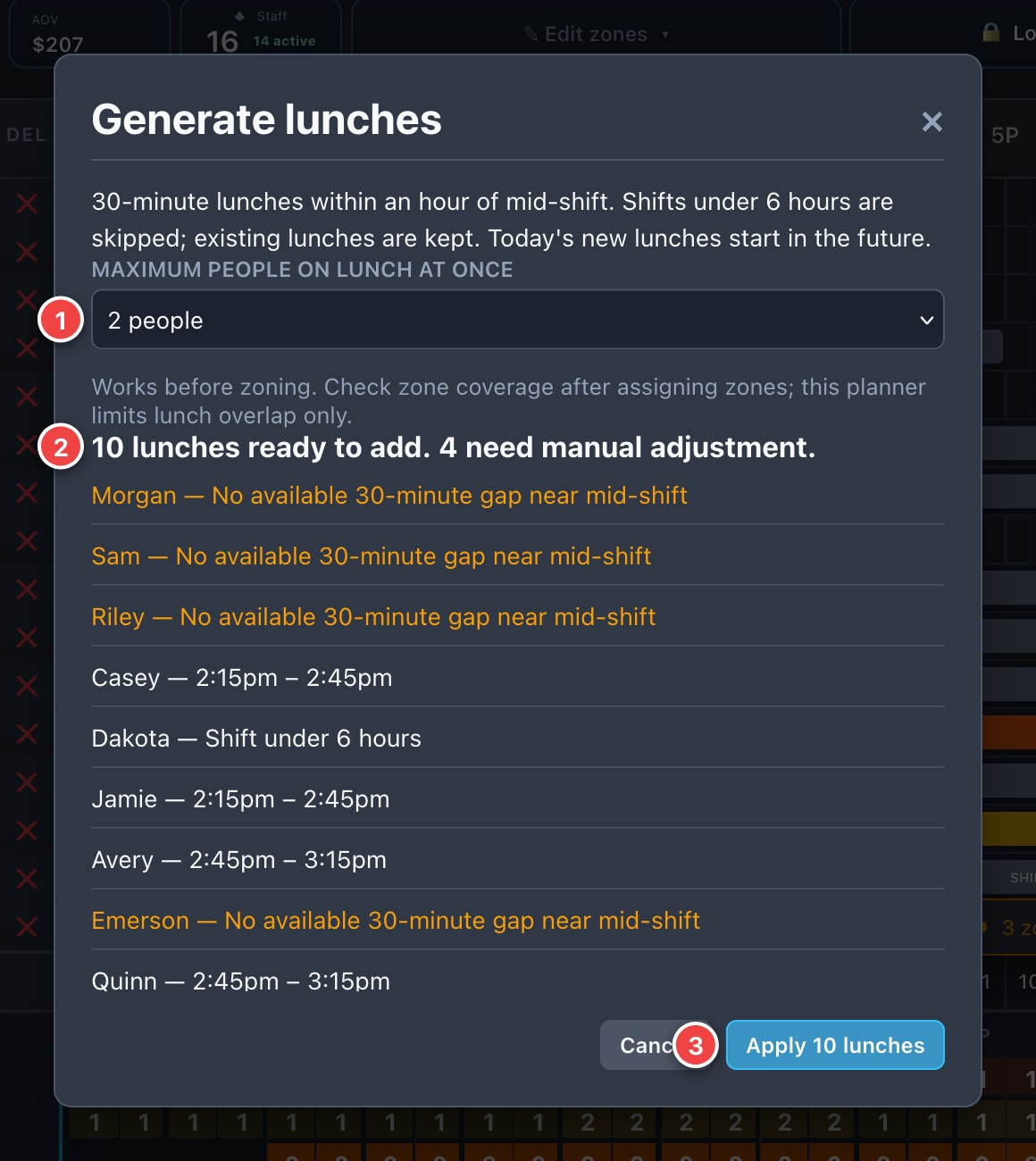
The roster can plan 30-minute lunches for you so they are spread out.
Make sure shifts are entered. (Lunches can be done before or after zones.)
Tap Tools → 🍴 Generate lunches.
Choose the maximum people on lunch at once (2 or 3).
Read the list. Orange lines need you to place that lunch by hand.
Tap Apply lunches.
The rules it follows
30 minutes, near the middle of the shift
In shift order: the first person to start gets the first lunch, the last gets the last, about three hours into the shift
Shifts under 6 hours get no lunch, and Leads are skipped
Existing lunches are kept
On today's roster, new lunches are in the future
1 Maximum at once. 2 Summary. 3 Apply lunches.
Good to know Lunch appears as a dark block on the person’s row. To change one time, right-click the lunch button on a computer and type a new time.
9. Checking coverage
Some zones always need someone. The roster checks this for you and shows where you are short.
The zone counts under the roster
1 Tap to hide or show. 2 People in the zone right now. 3 People per half hour. 4 Orange means too few. 5 Hour labels.
Each row is a zone. Each box is a half hour. The number is the fewest people in that zone during those 30 minutes.
On a computer, point at a number to light up its row and time. Tap a number to see who it is.
Tap Zone counts to hide the rows when you do not need them.
The coverage warning
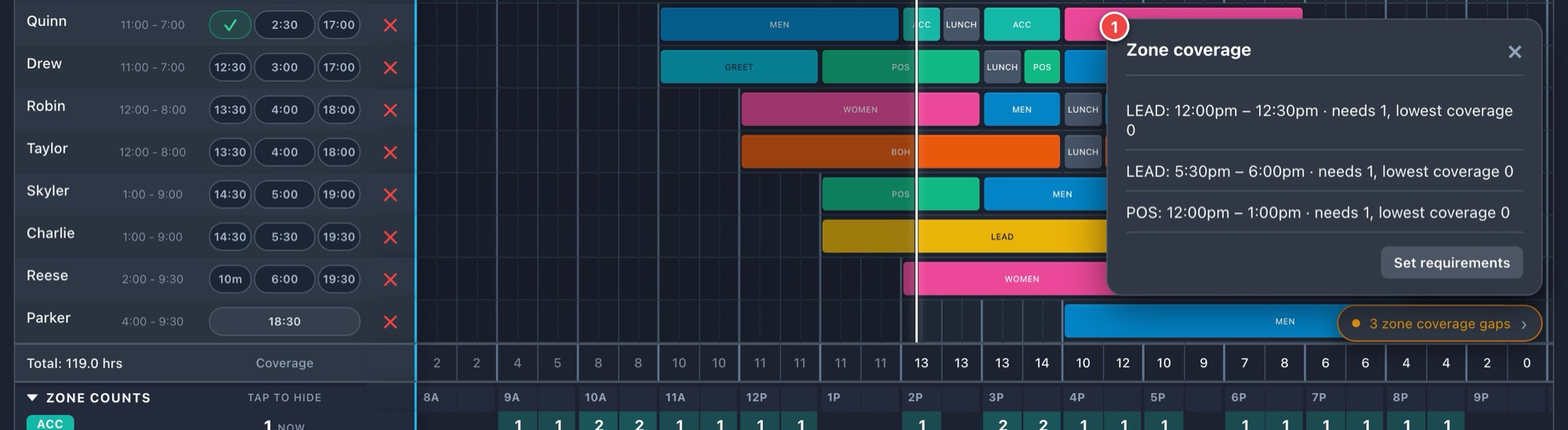
The orange button at the bottom right says how many gaps there are, for example 3 zone coverage gaps. Tap it for the list: which zone, and the time it is short.
To fix a gap, move someone into that zone (page 8), or tap the number to see who could move.
Good to know To choose which zones must be covered, and how many people they need, use Tools → Coverage rules. This applies to every day.
The coverage list and the zone counts, with the gap shown in orange.
10. During the day
Breaks and lunches
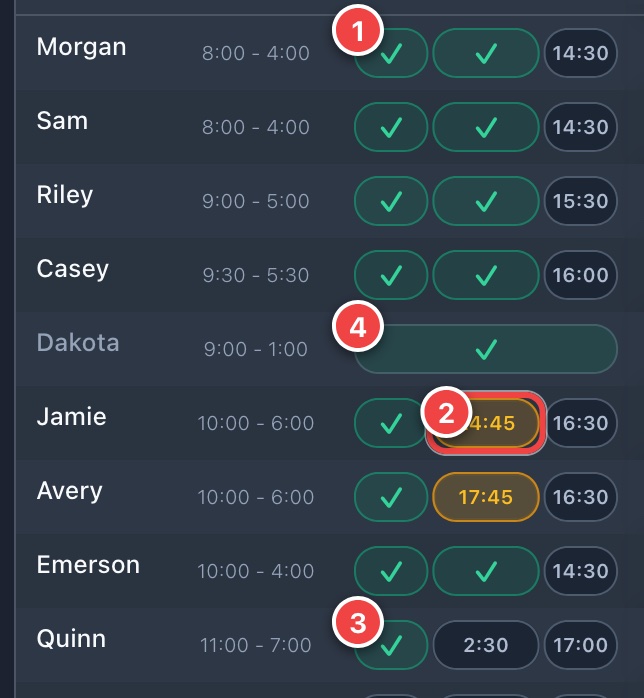
Each person has three round buttons: B1, Lunch and B2. B1 and B2 are 10 minutes; lunch is 30. People on shifts under 6 hours get one 10-minute break only.
1 Done (tick). 2 Running: counts down. 3 Not started: shows the planned time. 4 A short shift has one break.
Tap a button to start the timer. It counts down.
Tap again when they are back. It shows a tick ✓.
Tap a ticked button to reset it.
Double-tap to mark it done straight away.
When a timer runs out a chime sounds and a message names the person. Turn the sound on with Tools → 🔔 Alerts.
Sales and the Performance box
Tap Performance to open the hourly sales table. Enter sales each hour.
Tap Performance to open or close it. Type each hour's sales in the boxes.
The figures at the top (sales, per-hour, UPT, average order) update by themselves.
When the roster is locked, these boxes cannot be changed.
11. Phone view and Fit view
For staff on phones
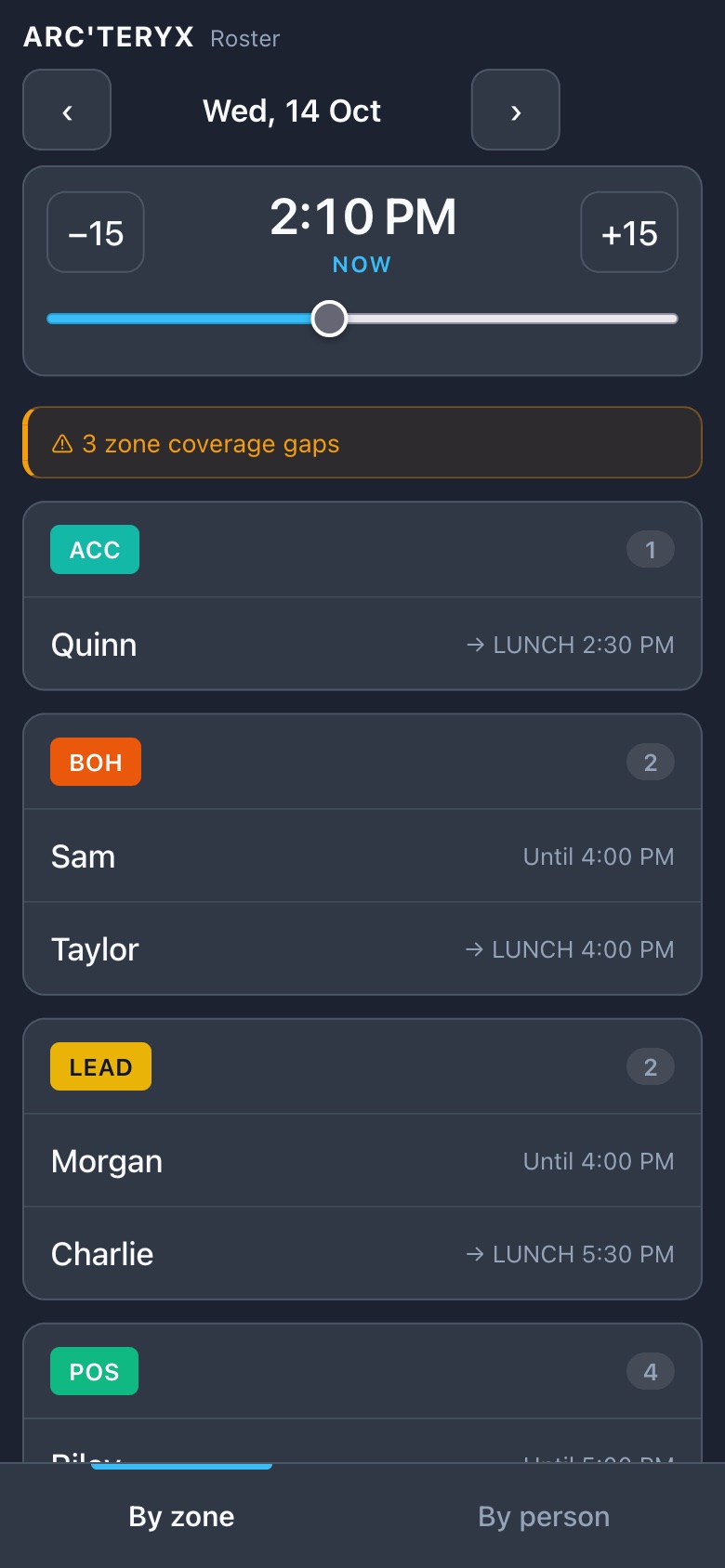
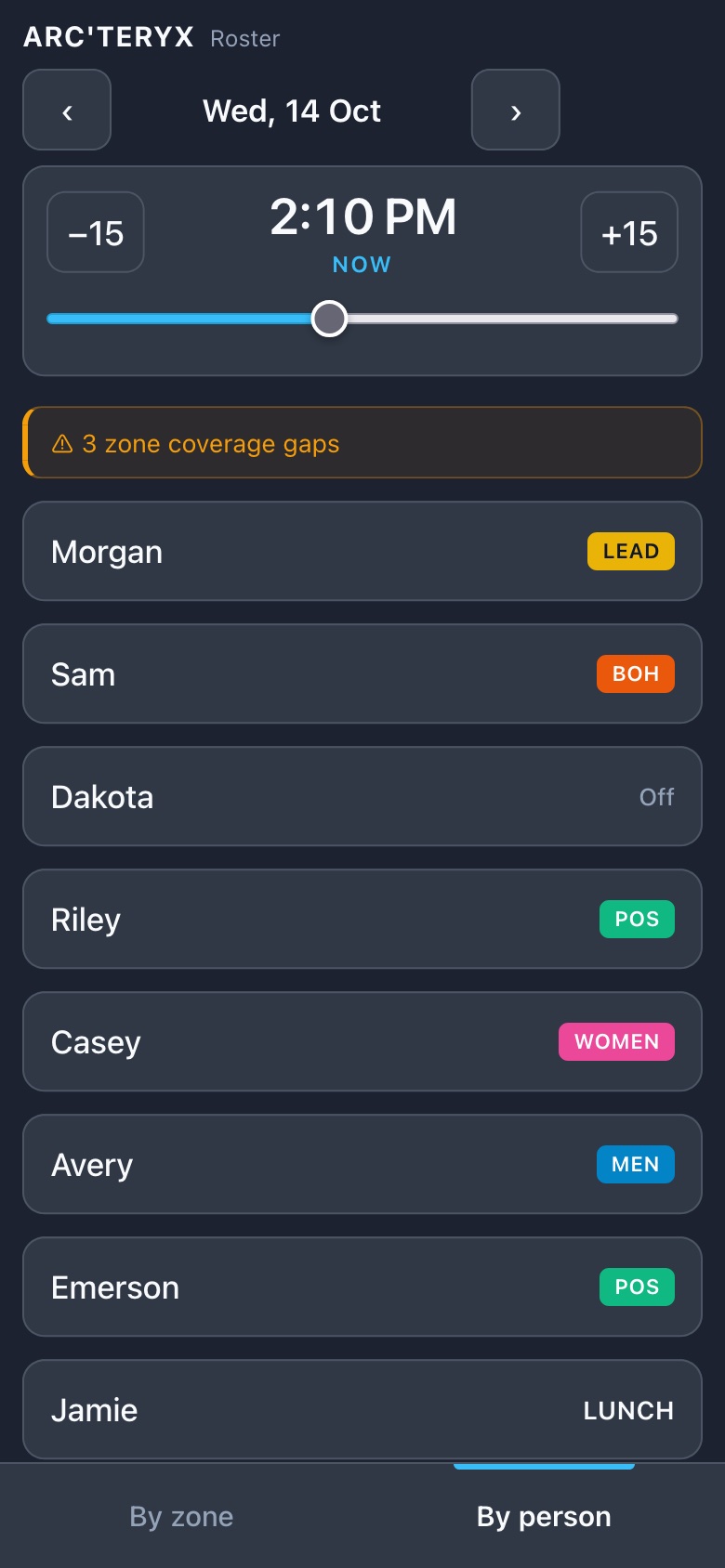
On a phone the roster shows a simple who is where right now page. Staff cannot change anything.
By zone: each zone and who is in it.By person: each person and where they are.
Slide the time bar, or tap −15 / +15, to look ahead.
Tap Back to now to return.
The orange bar warns about zones that are short.
The tabs at the bottom switch between By zone and By person.
Fit and Normal on the iPad
The small switch at the bottom right changes how the roster fits the screen.
Fit
Every person and the whole working day on one screen, no scrolling. This is the default.
Normal
The roster at a comfortable size that you scroll sideways. Handy for fine editing.
Good to know If you have many staff, hide the Zone counts so Fit can make every row bigger.
12. Backup sheet and end of day
If the iPad stops working
Do not panic. The roster is saved online, so nothing is lost.
Use the printed backup sheet kept in the office to see who should be where.
Open the roster page on any other device: the office computer, or a phone. Staff phones show the simple who-is-where view.
Charge the iPad. Open the page again. Everything will be there.
Print the backup sheet
Open the day you want. Tap Tools → 🖨 Print backup.
In the print window choose A4, Landscape, and turn on Background graphics (so colours print).
Print it and keep it in the office. Print a new one after big changes.
End of day checklist
☐
All breaks and lunches show a tick ✓
☐
Sales figures are entered
☐
Tomorrow's shifts are entered if you know them
☐
Backup sheet reprinted if the roster changed a lot
☐
Tap 🔓 Lock so nothing changes by accident
Tip Changes save by themselves. There is no Save button for the roster.
13. Troubleshooting
What you see
What to do
I cannot change anything
The roster is locked. Tap 🔒 Unlock and sign in.
Tapping a block asks "Change zones?"
Zones are locked on purpose. Tap ✎ Edit zones first.
I changed the wrong thing
Tap Tools → ↶ Undo.
It says "Not live – reconnecting…"
The device lost its connection. Check the Wi-Fi. Your changes are kept on the device and will send when it reconnects.
A break went back to how it was
Open Tools → Diagnostics, tap Copy and send the text to your manager. It records what happened.
I am on the wrong day
Look at the date at the top. Tap ‹ › or tap the date to choose. ↩ Today returns to today.
Suggest zones says "Not enough history"
It needs at least 3 past days with zones filled in. Keep using the roster, then try again.
A person is missing from the zone counts
Their block may still be grey (no zone), or it is a lunch. Grey and lunch time do not count.
Sign in does not work
Check the email and password. If it still fails, ask your manager to reset your password.
The page looks old or stuck
Close the app and open it again. On a computer, refresh the page.
Still stuck? Ask:
Quick reference
The morning in eight steps
1
🔒 Unlock and sign in
2
Pick the day with ‹ ›
3
Tools → + Staff for each person, or 📷 Scan
4
Tap the shift time and type it, like 9:00 - 5:00
5
Tools → ✨ Suggest zones → Apply (or ✎ Edit zones and tap blocks)
6
Tools → 🍴 Generate lunches → Apply
7
Check the orange coverage button and the zone counts
8
🖨 Print backup, then 🔓 Lock when you finish
All buttons at a glance
✎ Edit zones
Unlock zone painting. Tap Done when finished.
Normal / Fit
Scrolling view or everything-on-one-screen view.
Zone counts
Tap to hide or show the people-per-zone rows.
Orange pill
Zone coverage gaps. Tap for the list.
↶ Undo / ↷ Redo
Step back or forward (in Tools).
Performance
Hourly sales table.
A one-page quick sheet for the office wall is also available: quick-guide.html (print it on A4).
Rolling this out in your store
A simple plan to get a supervisor team confident in about two weeks.
Before the first session
☐
Every supervisor has their own sign-in (the app owner sets these up)
☐
Zone names and colours match your store (Tools → Zones)
☐
Required coverage is set (Tools → Coverage rules)
☐
Roster is on the shared iPad Home Screen and the office computer
☐
This guide printed, and one printed backup sheet in the office
Training plan
Session
Do together
1 · 30 min
Pages 4-7: sign in, tour, add staff, shifts. Each supervisor builds a future day (practice days do not touch real rosters).
2 · 30 min
Zones by tapping blocks, Suggest zones, lunches. Each supervisor finishes a full practice day.
3 · 20 min
Coverage, breaks, backup sheet, locking. Walk through the if the iPad fails steps.
Week 2
Supervisors run the real morning setup. A confident supervisor sits with anyone who is unsure.
Keep it healthy
Use Zone history monthly to set Usual zones for new fixed roles.
Reprint the backup sheet after big changes.
Share what is not working with the app owner each week.
Practising? Pick a day in the future. Today's real roster is never touched.